Introducing Role-Based Controls in SmartGuess: A Smarter Way to Collaborate
Role-based controls are now available 🎉
Are you leading the estimation discussion and selecting the story to estimate next? Or are you observing the discussion, and joining automatically will work best for you?
Whatever role you are in, we got you covered. In this release, we made the following settings available:
- Lead the session. Decide when estimates are shared, re-estimated, and estimate saved.
- Observe the discussion without giving an estimate.
- Share a link to the next story you visit with your team. Works excellent with number #1.
- Automatically join each session. Works well with #1 or #2.
Thank you to one particular customer who shared with us the challenge they faced and took part in giving feedback on a prototype we shared. 😉🙌
How does it work?
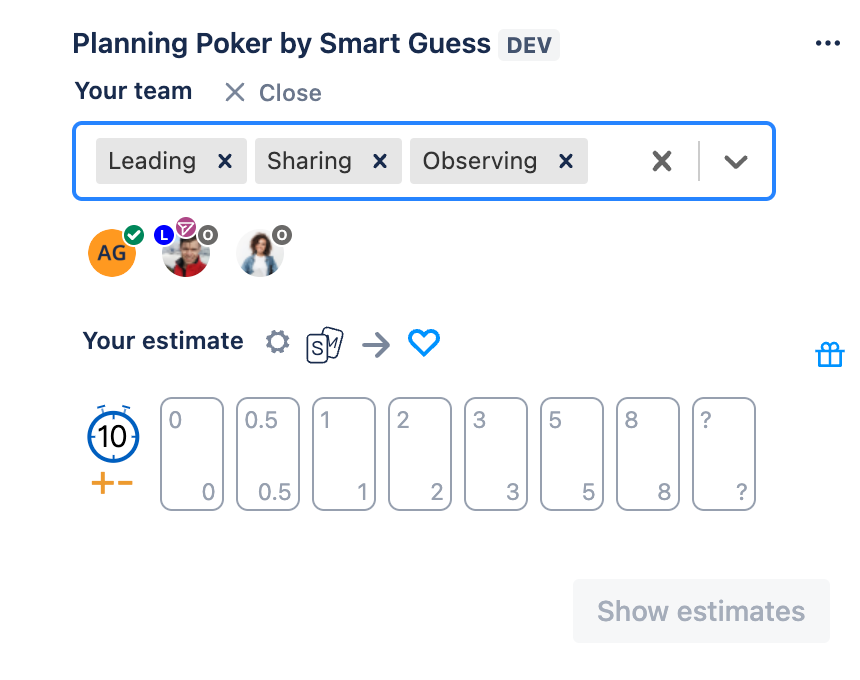
Open these settings by clicking the "Your settings" cogwheel:
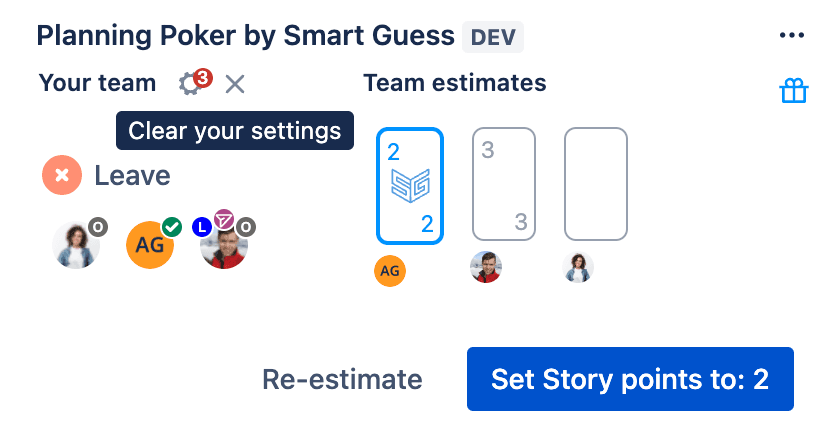
Your Avatar shows your settings
Once settings are selected and saved, your avatar is decorated accordingly:
- L - Leading - Blue
- O - Observing - Grey
- Send Icon - Sharing - Purple
- Checkmark Icon - Estimate in place - Green
The setting of automatically joining a session has no decoration associated with it. The user avatar presence makes this clear.
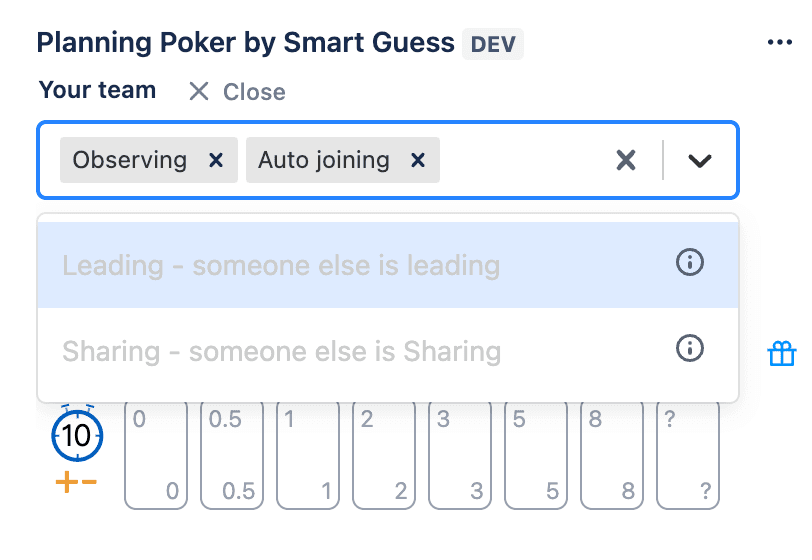
Only one user can Lead. Only once user can Share at the same time
Here is how this shows up for the user:
Sharing, how does it work?
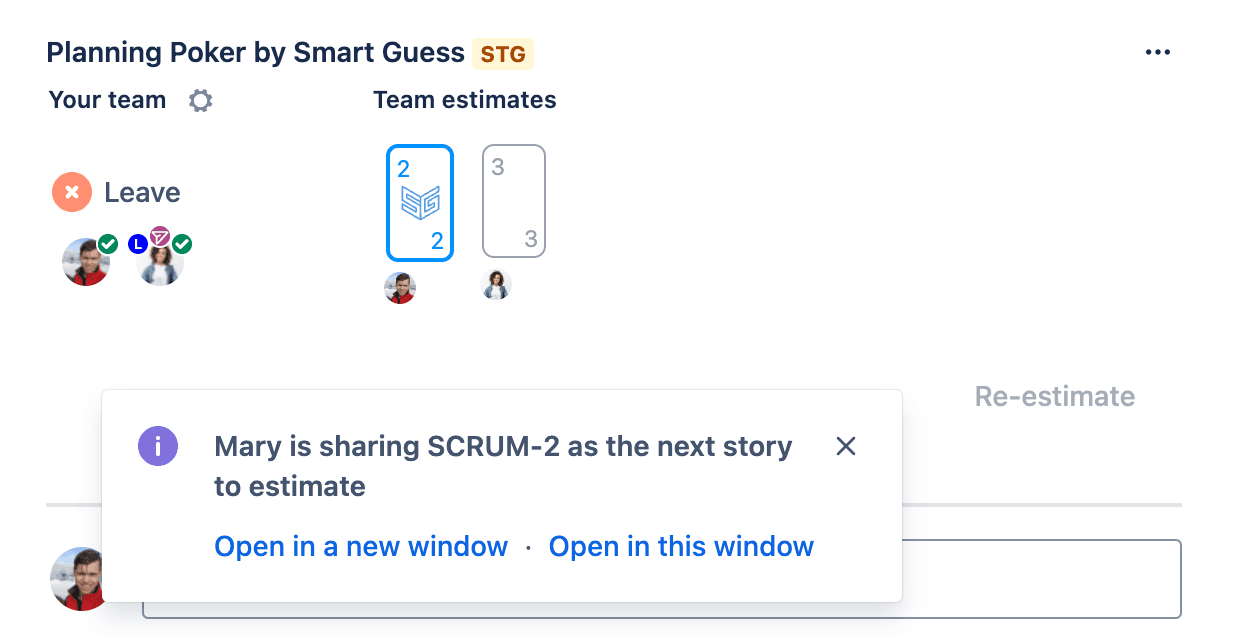
When sharing is selected, a link to the next story you open is made available only to team members who participated in the last story estimation you just completed.
Here is how it will appear for your team members. Clicking the link will bring team members to the story next up for discussion.
Worried about unintentionally sharing a story with your team?
Don't worry; we thought about this and built in the following controls:
- You select Sharing when you need to during refinement
- Stories are only shared with team members who click the "Join" button in the same Jira Issue in Smart Guess within the last 15 minutes
- One-click action to "Clear your settings" allows an easy way to turn off sharing when refinement is complete:
Get the latest version of Smart Guess in two steps
If you can't see the Cogwheel icon next to "Your team" you are running an older version and need to update manully.
To update to the latest version:
As a Jira Admin
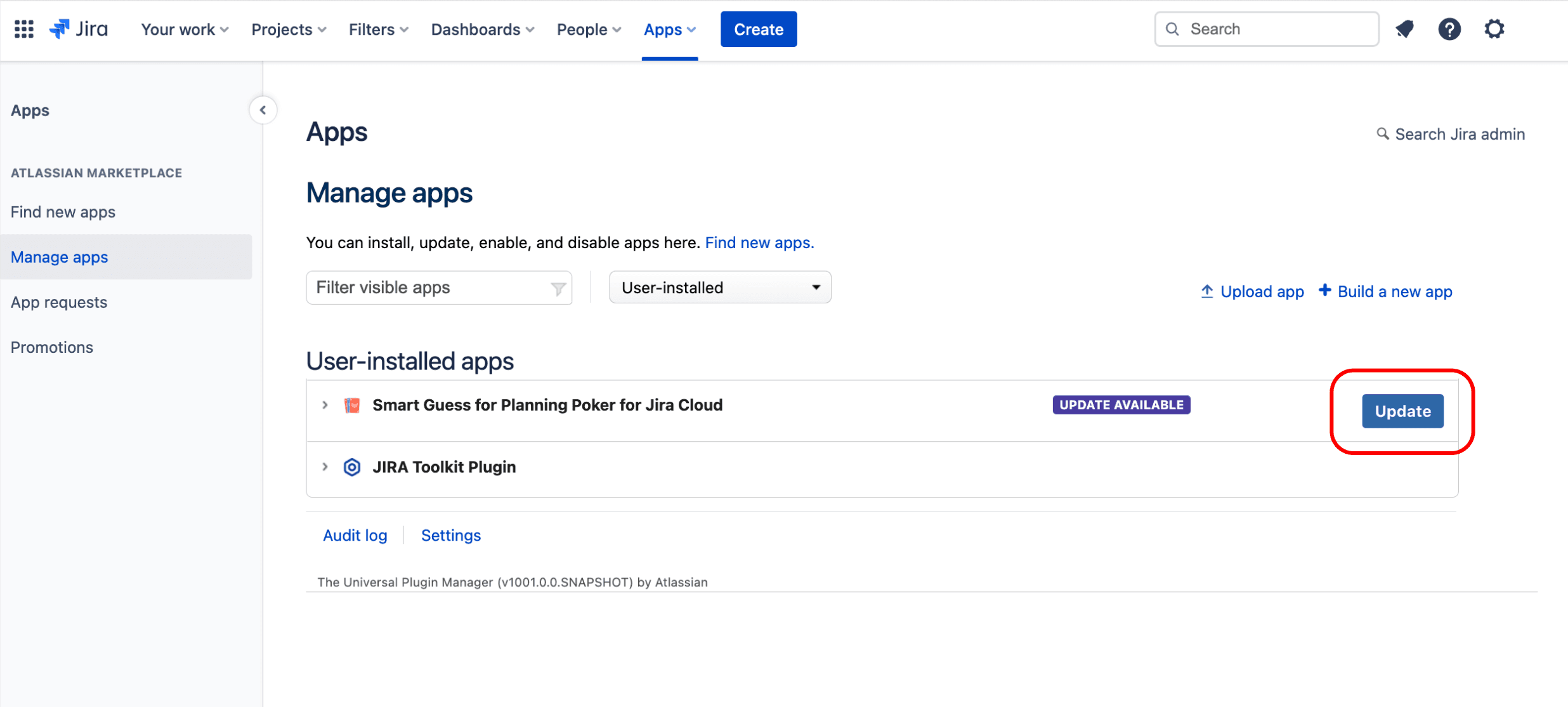
- Click "Apps -> Manage Apps" from the Jira top navigation
- Find "Smart Guess" in the list and click "Update."