
How to Add Story Points in Jira
Setting up and using story points in Jira is straightforward once you know where to look. Follow these steps to start estimating with story points.
Quick links:
- Enable story points
- Add story point field to work types
- Saving your story point estimate
- Run a Planning Poker session
- Story point reports
- Beyond Story points
There are two types of Jira Spaces (or Projects), team managed and company managed. Here is how you find out which type you are using:
Step 2. Adding the Story point field to your work types
The story point field isn't visible unless you first add it. To do so you need to place them on the screen for each work type you are going to estimate. Here is how this is done:
Open the Field Configuration in your Jira Space You can access this screen either by using: Left hand sidebar - Menu
A. Navigating to Space Settings (if you haven't done so already)
OR - another way
B1 With a Jira Issue Open - click the Configure button in the bottom - right corner
B2 The work type of the issue you had open is automatically selected
This will open up the following screen allowing you to add fields to the screen:
Find the field, then Drag and Drop
C. With this screen open, find the fields to add, then use Drag and Drop to place them on the screen.
Use the search box to Find the field to add using the following field names
- For Team managed spaces the field name is "Story point estimate"
- For Company managed spaces the field name is "Story points"
With Smart Guess Planning Poker installed, also add the following fields:
- "Estimated by" — Shows who has already estimated and who hasn't, enabling asynchronous Planning Poker where team members estimate on their own time
- "T-shirt estimate" — Enables T-shirt size estimation (XS, S, M, L, XL) as an alternative to numeric story points
D. Use drag and drop to place the field in your issue view
Here is how this is done for the "Story" issue type:
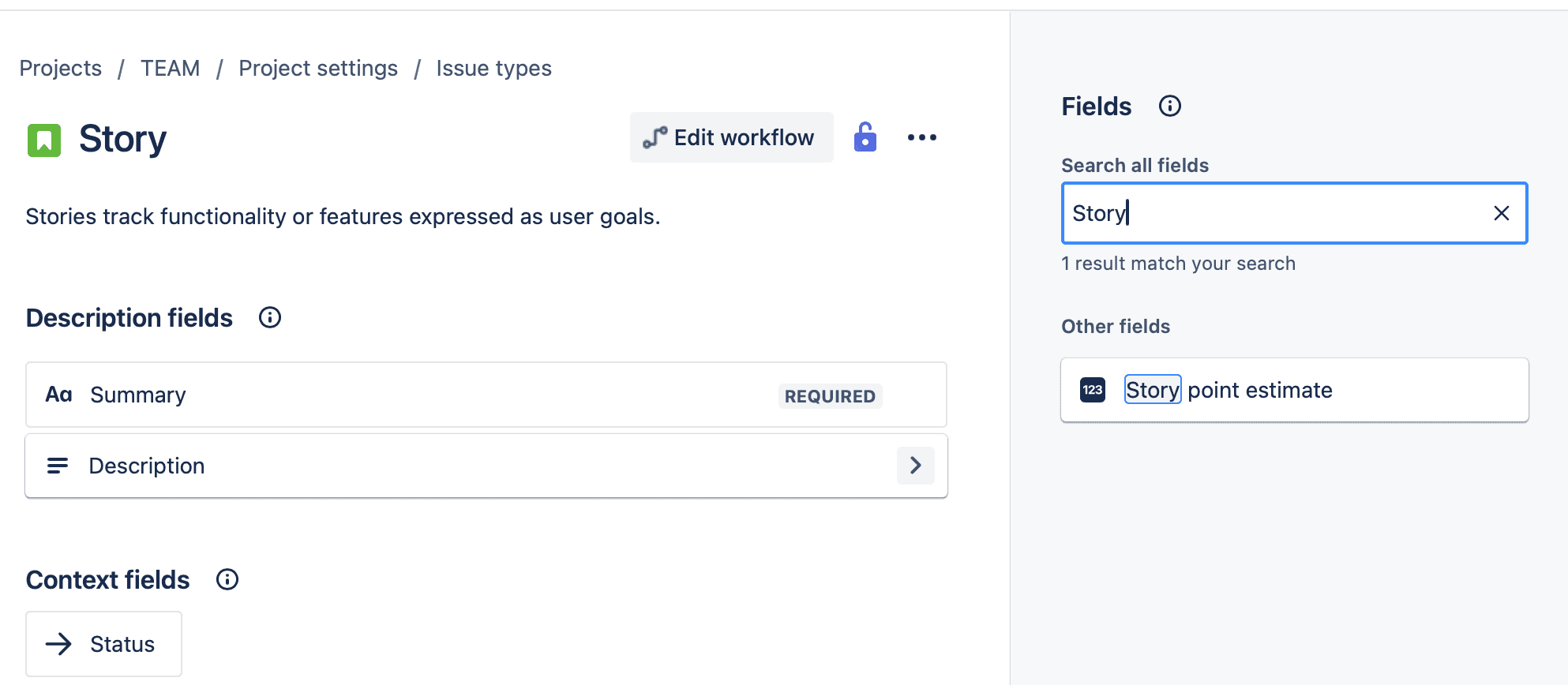
E. Repeat the previous step for every Work Type you use for estimation
Notice the video above showed field added for the "Story" - issue type. Repeat the process for every Work Type you use to estimate Story points for (Epics, Story Bug, Task, etc).

C. During Sprint Planning (with Smart Guess) - save with one click
When Estimates have been shared with the team, use the Set Story points to button to save estimates with one click.
Story points only pay off if you can predict delivery.
Jira gives you a field, not a process. Here's how teams actually run estimation sessions.
Step 4. Run Planning Poker from the Jira Backlog (with Smart Guess)
Jira lets you set a final Story Point value, but doesn't include a built-in Planning Poker process.
Smart Guess fills that gap — your team can estimate stories directly from the Jira Backlog without switching tools, using all the context already in Jira. Here's how it works:

A. Setting up your estimation card deck in Smart Guess:
To configure your card deck click the Manage Cards - cog wheel in Smart Guess:
This will open the "Manage Card Decks" screen as seen below, allowing you to fully configure the Card Deck:
- Add cards you use
- Remove cards you don't use
- T-shirt estimation supported
- Multiple card decks are supported
B. Team roles in Smart Guess:
Click the Team Settings icon next to "Your team" to configure how each member participates:
- Leading — Lead the session. Decide when estimates are revealed, re-estimated, and saved
- Observing — Follow the discussion without giving an estimate
- Sharing — Automatically share a link to the next story you visit with your team. Works great with Leading
- Auto joining — Automatically join each session. Works well with Leading or Observing
Once the Reports feature is enabled you will find a "Reports" link in the left navigation of your project. Opening the Reports will give you access to the following reports to track your team's progress:
- Burnup report Visulize sprint's completed work and compare it with its total scope.
- Sprint burndown chart Track and manage the total work remaining within a sprint.
- Velocity report Predict the amount of work your team can commit to in future sprints by seeing and reviewing total number of story points, i.e. teams velocity, completed per sprint.
B. Beyond Story Points: Reports that make a difference (available with Smart Guess)
Story point estimates build team consensus, but they don't tell you whether your delivery process can actually deliver what you estimate. Predictive Planning Poker bridges that gap.
When the same 5-point story takes 1 day one sprint and 11 days the next, stakeholders lose trust in your plans.
Reports on How how long will it take & how reliable is your estimate
The following report answers:
- How long will this actually take? — Based on completed work, not just estimates
- Is this estimate reliable or risky? — Shows estimate variability so you know when to flag concerns early
Estimates are inputs. Forecasts are the answer.
But this is only the tip of the iceberg. Clicking the predictability analysis will give you Flow Intelligence.
Flow Intelligence Reports
Jira's built-in reports (Burnup, Burndown, Velocity) show what happened. Flow Intelligence gives you why.
By analyzing how work actually flows through your system, Flow Intelligence helps you pinpoint where unpredictability comes from:
- Are large stories the main cause of variance?
- Are certain types of stories the culprit?
- Are long code reviews stalling delivery?
See what hurts your flow. Understand why. Fix what matters.
The result: estimates your team can stand behind and stakeholders can trust.
